All blog
Whether you're planning a tenant-to-tenant migration, AD consolidation, or move to Microsoft Entra ID, success depends on careful planning, thorough testing, and a well-prepared target environment. Here’s how to minimise risk, reduce downtime, and deliver a seamless user experience.
This article seeks to give you an understanding of the considerations to make your project successful.
With so much at stake, how do you make your project successful?
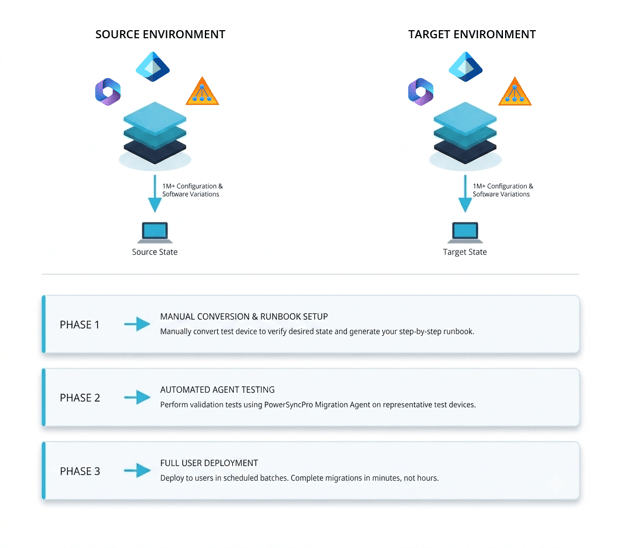
It can be summarised in one word - testing. Well, two words actually: planning and testing. You should have a clear picture of what your target end state environment should be, and the steps required to get there.
Your Windows workstations will be successful with PowerSyncPro Migration Agent. However, the Migration Agent is only the final step on your journey that will be the ultimate execution phase.
Whether you’re performing a tenant-to-tenant migration, an AD consolidation or transitioning to cloud native devices (Entra Joined) your target estate needs to be in the corrected desired state configuration to support the end user experience.
Know your current Windows environment before migrating
Know your environment! What is your current estate and where (and how) are your users and devices connected.
- AD Joined
- Hyrid Entra joined and Intune Enrolled
- Entra joined and Intune enrolled
- Workgroup devices
Define your target environment
What will be your preferred device end state configuration?
- Entra joined and Intune enrolled
- New M365 tenant, same M365 tenant
- Hyrid Entra joined and Intune Enrolled
- New AD, same AD, new M365 tenant, same M365 tenant
User mapping
Using PowerSyncPro, a Windows device will have the Windows user profiles preserved and repermissioned for a seamless user experience at next log on. Depending on your use-case, an end-to-end migration should take between 10 and 30 minutes.
For a device to be successfully repermissioned you must have an exact mapping of your user’s logon details so that the SIDs are mapped. The target SID is what is used update the permissions in the migrating device.
Your target accounts should be created and configured in advance with all attributes correct, passwords synchronised and scoped to the correct groups and policies.
Security posture
When planning your end-state you will need to ensure that users are correctly licensed and devices are scoped for Intune and that Conditional Access and Device Compliance policies are aligned to meet your requirements - but will also allow a fresh device to join.
A robust target estate security posture could be a new and different experience for migrating users and devices. Without adequate planning, testing and preparation the day 1 experience might be challenging and frustrating for your users. E.g. strict user MFA requirements, device compliance policies with no grace period may fail Conditional Access.
Testing applications post device migration
Desktop applications should be thoroughly tested post-migration as part of a robust testing plan. PowerSyncPro will reset the core Microsoft suite of applications to the “Out of the Box” fresh start experience but other 3rd party applications should be tested on a migrated device for the end-user experience.
If there is an expectation that users will be able to access resources in a legacy Active Directory post migration, then you will need to include synchronising SIDHistory as part of your project, and design your Active Directory Forest and Domains trusts accordingly.
It should be noted that Intune delivered applications that are set to required in the source will most likely be removed when the devices leave the home tenant – even if you are immediately re-joining the same tenant as part of a migration strategy to migrate to Entra join.
Other core applications may have dependencies on how they authenticate. They could be using SSO, but the users UPN has changed, or the authentication mechanism is in fact using email address.
Enterprise applications
- Authentication / sign-in claim mapping
- SCIM provisioning / user matching
You should be aware of the risk that an app may be authenticating on one value but provisioning/matching on another. For example, SSO might send mail, while SCIM provisioning matches on userPrincipalName.
That can cause duplicate accounts, failed provisioning, or users landing in the wrong SaaS identity after a UPN/domain change, particularly if connecting to the application in a legacy tenant during a coexistence phase.
Preparing hybrid Entra join and SCCM
For a workstation migration between Active Directory environments any legacy endpoint management configuration capable of triggering Hybrid Microsoft Entra Join should be removed, disabled, or superseded before workstation migration.
This includes SCCM/ConfigMgr client settings, co-management configuration, automatic device registration policy, legacy GPOs, and old tenant SCP/device registration configuration. Otherwise, migrated devices may continue attempting registration against the legacy tenant leading to incorrect Hybrid Join state, and devices appearing in the wrong tenant.
If your intention is to Hybrid join from a target Active Directory to a new target tenant, or even hybrid join back to its current tenant, then you must ensure that the device is capable of reaching a Domain Controller in the AD it is joining and that it can be in receipt of the policies it may need to complete the Hybrid join process.
Offline domain join
If you are migrating between Active Directories and intend on using Offline Domain Join, your users must cache their target credentials in advance of their migration or else run the risk of not being able to sign-in to their device post migration. Ultimately for these devices to also become Hybrid joined and Intune enrolled they will eventually need to connect with a domain controller.
Preparing Windows devices for Intune enrolment
Where Windows devices need to become Intune enrolled, PowerSyncPro can assist by calling the DeviceEnroller system executable to expedite enrolment. However, no process exists to directly add a device to Intune circumventing the Microsoft prescribed methods.
The process by which a Windows workstation becomes Intune Enrolled is well documented and drops through a set process of gates. This includes the device being in the MDM scope for Intune Enrolment and the users being sufficiently licensed to be able to Intune enrol a device. The device requires a Primary Refresh Token and must be able to reach the Microsoft Intune enrolment/management endpoints.
Endpoint Detection and Response (EDR)
During workstation migrations, Endpoint Detection and Response “EDR” tools such as CrowdStrike, Carbon Black, Microsoft Defender for Endpoint, SentinelOne, Tanium and similar endpoint security platforms can block or disrupt the migration because their purpose is to detect and prevent exactly the types of activity that a migration tool may legitimately perform.
EDR tools and zero-trust device posture platforms are often centrally managed. The workstation agent may need to check in with its management service before it receives the policy or exclusions required for migration. If the device is in a restricted or default-deny state, it may only be allowed to communicate with the security platform itself and may block access to the PowerSyncPro server, domain controllers, file shares, or other migration dependencies. This can prevent the migration from starting or completing, even though the migration activity is authorised.
PowerSyncPro may need to rename devices, change domain or Entra join state, update local profiles, modify registry and security settings, adjust local groups, run privileged services, and perform actions that resemble persistence, credential manipulation, lateral movement, or tampering. These controls are often strengthened with anti-tamper protection, device control, script control, ransomware protection, application control, host firewall rules, and behavioural detection policies, which can prevent the migration from completing even when the activity is authorised.
The migration tooling, service accounts, scripts, binaries, working folders, network destinations, and expected behavioural patterns should be tested in a pilot ring and allowlisted where appropriate. For stricter environments, clients may need temporary policy relaxation, migration-specific device groups, staged exclusions, controlled maintenance mode, or vendor-supported bypass procedures.
Clients should therefore confirm endpoint security behaviour in advance, ensure required security agents can check in, pre-stage migration allow-listing and network exceptions, and validate the end-to-end migration path during a pilot before production rollout.
At a high level, clients should treat endpoint security as a formal migration dependency rather than an afterthought. Before migration, the security, desktop, identity, and migration teams should jointly identify all endpoint protection products in use, confirm which tenants or management consoles control them, review tamper-protection and prevention policies, and agree an approved migration window and exception model.
The key message is that EDR tools are not “getting in the way”; they are doing their job, so successful workstation migration requires early coordination, documented exceptions, testing, and post-migration security validation.
Network and VPN pitfalls during Windows migrations
When migrating Windows workstations from a source environment to a target environment, clients should carefully assess any dependencies on legacy domain-delivered network access configuration. Devices may currently rely on Group Policy, Configuration Manager, Intune, certificate auto-enrolment, NDES/SCEP, PKI, trusted root certificates, Wi-Fi profiles, VPN profiles, Always On VPN configuration, 802.1X authentication, device certificates, user certificates, or RADIUS/NPS policies that are tied to the source Active Directory or management platform.
If these dependencies are removed or broken during migration, devices can lose access to corporate Wi-Fi, VPN, domain controllers, file shares, applications, or even the network path required to complete the migration.
Clients should identify these dependencies early, confirm how network authentication is performed, ensure equivalent certificates and profiles are available from the target environment, test device and user authentication after migration, and plan a fallback access method so workstations are not stranded without connectivity.
This is especially important for remote users and Always On VPN scenarios, where loss of certificate trust or policy delivery can prevent the device from reaching the services needed to remediate itself.
Clients should also review internet proxy and outbound connectivity dependencies before workstation migration.
Many enterprise devices rely on domain-delivered proxy configuration, PAC files, WPAD, WinHTTP proxy settings, browser proxy policies, VPN pre-logon connectivity, or security agents to reach Microsoft, identity, management, and migration endpoints.
During migration, a device may reboot or run tasks as Local System, where the user’s browser proxy settings may not apply. If the system context cannot resolve or retrieve the PAC file, has an outdated WinHTTP proxy, loses access to domain-based WPAD/PAC infrastructure, or is blocked by a network proxy that requires user authentication, the device may be unable to contact Microsoft Entra ID, Intune, PowerSyncPro, EDR platforms, certificate services, VPN services, or other required endpoints.
This can leave the workstation in a partially migrated state with no reliable path to remediate itself. Clients should validate proxy behaviour in both user and system contexts, confirm required endpoints are reachable before and after migration, update or remove legacy proxy settings, and provide a fallback internet path for remote or roaming devices.
Entra join devices and on-premises resources
If you are going cloud native, will your users need to have access back to on-premises applications, print servers or file shares? If so, then you will have additional configurations to deploy.
For an Entra joined Windows device to access on-prem resources, you need:
- Cloud identity for Windows sign-in plus,
- Hybrid user identity linked to on-premises AD account plus,
- Network/DNS line of sight to Active Directory Domain Services and the resource plus,
- Kerberos/NTLM-capable app/resource plus,
- Correct AD permissions
- Microsoft Entra Kerberos / Cloud Kerberos Trust plus,
- Windows Hello for Business policy configured to use cloud trust plus,
- User has provisioned Windows Hello for Business
- Orchestrate the reconfiguration of tens of thousands of machines to perform actions when you need them done, shows progress to stakeholders and administrators
- Change the device join state; e.g. AD joined to Entra Joined, or migrate between ADs or Entra tenants
- Reset workloads (Office, Outlook, Teams, OneDrive etc) so that the user can configure them to the target environment
- Presents customisable end-user notifications and migration progress prompts with grace periods to complete work
- Repermission and retain Windows user profiles remapped to the target user account so that their working environment is preserved. They are back to work in minutes not hours
- Retains all software on device in the source state
- Migrate BitLocker devices
- Bootstrap AIP configurations
- Bootstrap Windows Hello for Business
- Run custom pre and post migration scripts
- Utilises targeted batches to schedule migrations and allow self-service migrations
- Migration progress dashboards and comprehensive logging to the device Event Logs and PSP Server console
- Migrate data such as Mailboxes, OneDrive, SharePoint and Teams
- Reset or reconfigure 3rd party applications
- Deploy or remove software on devices – outside of using custom scripts
- Upgrade Windows OS
- Update deployed administrative configurations on the device
- Configure AD or M365 Entra to make your desired state
- Bypass MFA so that logging onto a new environment is seamless
- Circumvent Entra Connect to force Hybrid Join
- Maintain internet access to the PSP server to approve the runbook activation
For passwordless / Windows Hello for Business access to on-prem resources, add:
If the user signs in to an Entra joined workstation with Windows Hello for Business, Cloud Kerberos Trust allows that cloud-authenticated WHfB session to obtain Kerberos tickets for on-premises AD resources.
Testing
PowerSyncPro Migration Agent is powerful software that can make simple changes to your device, or foundational changes, and everything in between. Clients need to be cognizant that the device is often being migrated into a new environment that will inevitably have a differing security posture and overall estate configuration design.
Steps to be successful
-
Ensure you can manually get a representative device built and configured to the latest client build joined to the current estate and then manually joined to the target end state.
-
Whilst this initially may not be simple, and it may not be practical to preserve the user profile, you will have confirmed that no error exists after migrating and using the device and that the new configuration works.
-
Perform migration testing on as many various states of the as possible. Particularly different connected states: On the corporate LAN, ethernet and Wi-Fi connected, on the corporate VPN off site locations, home offices.
-
Migrate devices using different representative employee personas. Include devices and users with as broad a cross section as possible from different departments and physical locations that use as many of the desktop published applications as possible.
The vast majority of challenges experienced will typically be post migration and will be environmental rather than something the Migration Agent related. Unfortunately, it could be the catalyst to surface problems. Testing and retesting is key to ensure the success of the migration.
Application Owners
Application owners should be engaged early on and be able to provide support and testing resources and criteria for post migration activities.
Technology Champions
Try to include technology champions within departments and locations that can act as ambassadors for the project and will be willing to assist other users as a first responder or give the project a lending hand to gently persuade users to read comms and perform any pre-migration activities required of them.
Batching
Consider using a ring-based methodology for migrations. Canaries, Early Adopters, Pilot Users, Main Migration Event. Do not include VIPs or high-profile users in early rings. Only select migration candidates based on their ability to be self-supported and can accept a period of downtime during the early phases of a migration.
Documentation and End User Communications
An end user experience document should be created so that users can have an advance ability to see the process in action and know what to expect.
The PowerSyncPro Migration Agent is built with the end-user experience in mind and has helpful dialog screens that are visible during the migration process. These screens can be customised with your own wording and in the users own language where you are a multi-lingual organisation.
There is also the option to have a QR code present that users can scan from a mobile device if they need to access more detailed information while their migration is in progress.
This will give PowerSyncPro Migration Agent the foundations for success.
What PowerSyncPro Migration Agent does and doesn’t do
It does (where applicable for your use case and runbook configuration):
- Orchestrate the reconfiguration of tens of thousands of machines to perform actions when you need them done, shows progress to stakeholders and administrators
- Change the device join state; e.g. AD joined to Entra Joined, or migrate between ADs or Entra tenants
- Reset workloads (Office, Outlook, Teams, OneDrive etc) so that the user can configure them to the target environment
- Presents customisable end-user notifications and migration progress prompts with grace periods to complete work
- Repermission and retain Windows user profiles remapped to the target user account so that their working environment is preserved. They are back to work in minutes not hours
- Retains all software on device in the source state
- Migrate BitLocker devices
- Bootstrap AIP configurations
- Bootstrap Windows Hello for Business
- Run custom pre and post migration scripts
- Utilises targeted batches to schedule migrations and allow self-service migrations
- Migration progress dashboards and comprehensive logging to the device Event Logs and PSP Server console
What it does NOT do:
- Migrate data such as Mailboxes, OneDrive, SharePoint and Teams
- Reset or reconfigure 3rd party applications
- Deploy or remove software on devices – outside of using custom scripts
- Upgrade Windows OS
- Update deployed administrative configurations on the device
- Configure AD or M365 Entra to make your desired state
- Bypass MFA so that logging onto a new environment is seamless
- Circumvent Entra Connect to force Hybrid Join
- Maintain internet access to the PSP server to approve the runbook activation
Ready for a seamless Windows migration?
PowerSyncPro Migration Agent migrates tens of thousands of machines across join states and tenants while keeping user profiles intact. Back to work in minutes, not hours.
Book your free demo today.