

What Users Notice During a PowerSyncPro Migration
What do users notice during a PowerSyncPro migration?
10 March 2026Anyone who has worked through a merger, acquisition or divestiture knows the usual side effects. Email, documents and identities move from one place to another, often with names and attributes changed along the way. Users get locked out, lose access to mailboxes, cannot reach workplace domains, and find files missing or moved. IT teams then spend weeks cleaning up.
It all comes down to identity and permissions. If users cannot reach the resources they rely on, they cannot do their job, and every hour of downtime costs the business money.
What a migration and sync platform needs to do
- Run reliably at any scale, across any number of domains, and keep running without constant attention once configured.
- Reach users’ devices (and servers) and reconfigure settings, permissions and applications at the right moment in the cutover.
- Show the before and after state of every object you plan to change, so you can report a confidence level to stakeholders before you commit.
PowerSyncPro covers all three. On day one in the new directory, users sign in and find the groups and permissions they had before, carried into the target through group sync and SID history, along with any new resources they are allowed to reach.
What users notice during the device move
Most users notice a scheduled restart and one new sign-in. PowerSyncPro Migration Agent shows each user a notice in their own language, with your support details and a QR code that links to your help pages. It then moves the device to the target domain or tenant and re-permissions the existing Windows profile. On average, a device migrates in about 15 minutes. See what affects migration time.
After the restart, the user signs in with their target account and sees the same desktop, files and applications. Outlook, Teams, OneDrive and the Office apps connect to the target tenant. Users set up a new Windows Hello PIN and re-add any extra mailboxes or PST files. Saved browser passwords do not carry over. Self-service options let users start their own migration at a time that suits them.
Identity management and password sync
Long-term sync between directories brings its own access problems. PowerSyncPro DirSync syncs passwords in both directions, so a password change in one directory applies everywhere, and users avoid unexpected lockouts and repeated password prompts. This works even when RC4 is disabled. It uses the PowerSyncPro password sync agent on your domain controllers.
The sync can run for as long as you need. It does not depend on third-party cloud services, apart from the cloud directories you choose to connect. That suits organisations that must keep older platforms in sync with newer architectures, or where a full migration is not the right answer yet. Users keep access to the older directories alongside the new ones.
Who delivers it
You can buy PowerSyncPro licences direct, or through a certified PowerSyncPro partner. We recommend a certified partner for implementation, and partners can run the whole project for you. Get in touch to find a partner in your region.
Latest from Blog

GCC High migration: identity and device migration
21/10/2026GCC High migration: how to move identities and Windows workstations securely
Learn More →
Why it's time to replace FIM & MIM
04/08/2026As MIM approaches end-of-support, we ask what is the path forward for identity management? For decades, Microsoft Identi...
Learn More →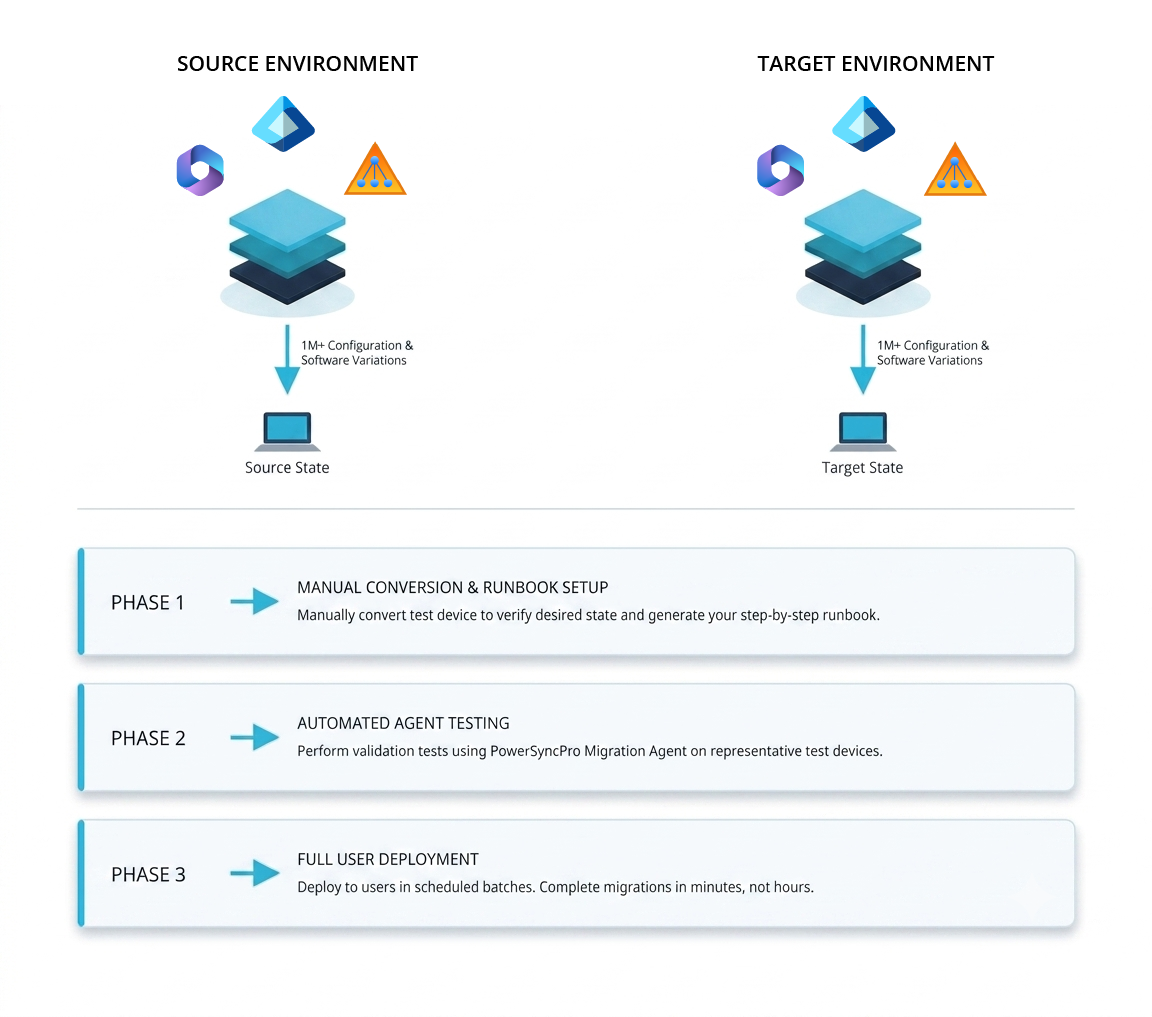
How to make your Windows migration a success
29/07/2026Everything you need to know before your next Windows migration project. Whether you're planning a tenant-to-tenant migra...
Learn More →