

What common migration issues does PowerSyncPro Migration Agent avoid?
What common migration issues does PowerSyncPro Migration Agent avoid?
25 September 2024How can I avoid sign-in problems after a workstation migration?
When a workstation moves between directories, for example from Microsoft Entra hybrid joined (formerly hybrid Azure AD joined) to Microsoft Entra joined (formerly Azure AD joined), it needs the user’s new credentials to reach the target. Done by hand, this often clashes with cached credentials and old tokens. Users see repeated sign-in prompts, cannot reach network resources, and hit software licence activation errors.
PowerSyncPro Migration Agent manages identity centrally. It takes its instructions from PowerSyncPro DirSync, which matches each source user to their target account and keeps passwords and SID history in sync. The agent re-permissions the profile for the target account and resets Office activation, so the user signs in once with their new credentials and the migration needs little follow-up from IT.
How can I stop user profile problems during an AD migration?
Joining a device to a new Active Directory or Microsoft Entra ID (formerly Azure AD) normally creates a new, empty profile. Moving the old profile by hand often breaks applications, mapped drives, printers and access to file shares. Many teams give up, wipe the device, reinstall Windows and rebuild it through Windows Autopilot, which means reinstalling every specialist application and preference.
PowerSyncPro Migration Agent keeps the existing profile in place. It re-permissions files, folders and registry keys for the new account, so applications, shortcuts and settings stay where users left them (GPO and Intune aside), with no reinstall.
How can I reduce downtime when migrating workstations?
The traditional routes are slow. The ADMT computer migration wizard often leaves credential clashes and authentication problems, and Microsoft no longer develops ADMT. Wiping and reimaging gives a clean start, but each device is out of action for many hours and needs planned maintenance, and users lose productivity while they rebuild their working set-up.
PowerSyncPro Migration Agent is a lightweight agent that you deploy through Intune, Configuration Manager, Group Policy or an RMM tool. It runs a scheduled runbook on each device and reconnects Outlook, Teams, OneDrive, OneNote, the Office apps and the primary Edge profile to the target, ready for sign-in. There is no reimage, so applications and preferences stay where they are. On average, a device migrates in about 15 minutes, including restarts. See what affects migration time.
What still needs attention?
A few items do not carry over: saved browser passwords, extra Outlook mailboxes and PST files, and linked SharePoint and Teams libraries. Test representative devices in a proof of concept so you can brief users on what to expect.
PowerSyncPro was built by a team with decades of experience running large migrations for some of the world’s largest organisations. Watch the demo to see a migration from start to finish.
Latest from Blog
GCC High migration: identity and device migration
21/10/2026GCC High migration: how to move identities and Windows workstations securely
Learn More →
Why it's time to replace FIM & MIM
04/08/2026As MIM approaches end-of-support, we ask what is the path forward for identity management? For decades, Microsoft Identi...
Learn More →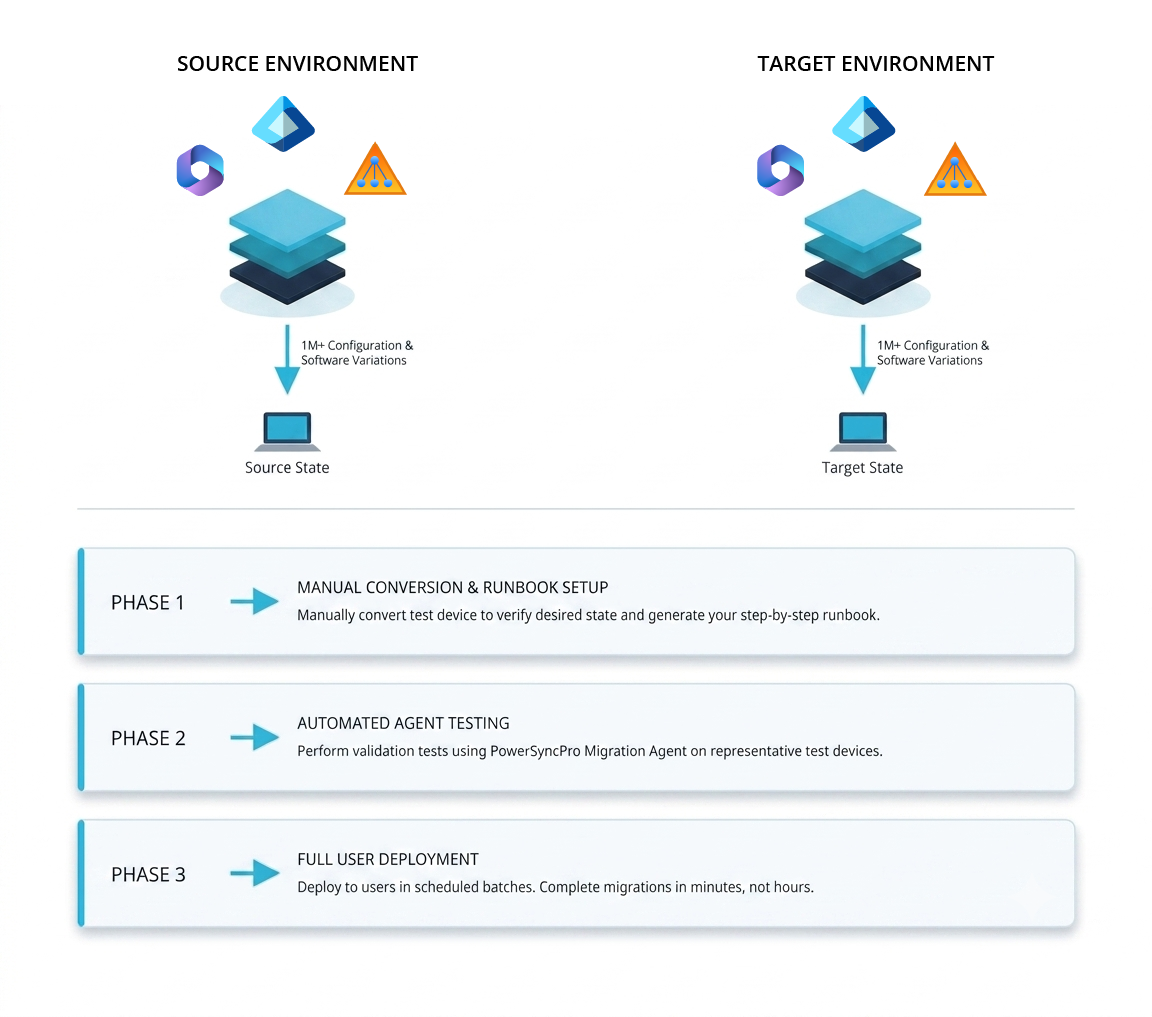
How to make your Windows migration a success
29/07/2026Everything you need to know before your next Windows migration project. Whether you're planning a tenant-to-tenant migra...
Learn More →