All blog
When ransomware locked a customer out of their entire Active Directory, they needed a secure way to move 1,400 workstations – fast.
Users could still log into their workstations (presumably through credentials being cached), however, their Active Directory was now ineffective.
We love a challenge, so we decided to create a conceptual scenario in one of our labs to recreate the circumstances.
There are several ways Migration Agent would be able to help in a scenario like this.
Join to a new Active Directory
To join a new Active Directory, the workstations would either need an always-on-VPN to the new Active Directory, or they would need to be on the local LAN with the capability to resolve the new domain controllers. Under the scenario of restoring their environment at pace, this may not have been easy to achieve.
With either of these two requirements in place, a standard domain join in the migration runbook within PowerSyncPro would suffice, which would then also allow the machine to become hybrid joined, so we could perform the workstation migration.
While PowerSyncPro Migration Agent supports Offline Domain Join (ODJ) – which would have been an ideal solution – in this case, the source Active Directory was inaccessible. To cache credentials, a trust between the broken AD and the new AD would have been required, making ODJ unviable under these circumstances.
Migrating the workstations to Entra joined
The simpler option is to go Entra joined, or cloud-only. The workstations only need consistent internet access to reach Entra and the PowerSyncPro server, enabling the Bulk Provisioning Token (BPRT) to join the machines to Entra. PowerSyncPro Migration Agent then repermissions the workstations and user profiles.
The users will be able to log onto their workstations with their tenant credentials and retain the same user profiles. They would now be managed by your tenant & Intune (if configured) rather than AD which is no longer accessible.
What other requirements are needed for a workstation migration?
Under these unique circumstances, the four most critical components we need to establish are as follows:
- User translation table
- A directory for the list of workstations
- A deployment method for Migration Agent
- A way to get the translation table onto the workstation
Let’s take a look at these one by one.
User translation table
The TranslationTable.json is the magic glue which allows us to repermission the workstation from the source user to the target user. Without a perfect match the intended user will not be able to log onto their profile and receive a new one.
Our normal process is to use a directory connection and a service account to read both the source Active Directory and the target environment. This allows us to retrieve user SIDs and create matches by setting up a match-only sync profile.
In this unique circumstance, that approach isn’t possible due to the lack of authentication to the source Active Directory via LDAP, so we need to think outside the box.
The customer used Entra Connect (formerly AADC) to sync their user objects to Entra ID. Within Entra ID, each synchronised user has an attribute called onPremisesSecurityIdentifier, and the user’s ID can also be converted into their Entra SID for the workstation.
To demonstrate the concept, we created a test script that generates a TranslationTable.json file.
While we’ve made the script publicly available, it’s intended for demonstration purposes only.
A directory for the list of workstations
Similarly to users and their security identifiers, we need a connection to the broken Active Directory to receive a list of devices in scope for migration. Again, this isn’t possible in the current scenario. So, what’s the alternative?
We created a new, clean, isolated Domain Controller (DC). The key requirement here is that the AD name must match the original source AD. This ensures devices can be matched correctly, and it allows the Migration Agent to register successfully.
Theoretically, this DC could be on the PowerSyncPro server itself, provided the server is powerful enough. Since no users or computers will be connecting to it, only the PowerSyncPro LDAP directory connection (which you’ll need to configure), performance demands are minimal.
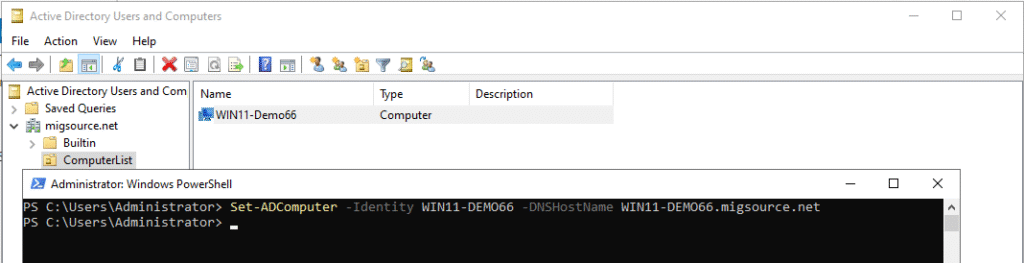
We manually add the ‘to be migrated’ computer names into this DC as simple computer objects. The one missing component is the DNS name which we need to add onto each computer object. Typically, this is added when the machine becomes domain-joined, however that is not the intended purpose of this DC. Instead, we need to use 1 line of PowerShell per computer to update the DNSHostName accordingly.
A deployment method for Migration Agent
This might be trickier for you under such circumstances, as System Center Configuration Manager (SCCM) & GPOs are likely unavailable. However, you may have access to Microsoft Intune or Microsoft Endpoint Configuration.
In this customer’s case, they were using another third-party tool for software delivery, so they would have used this for the installation of the PowerSyncPro Migration MSI.
Keep in mind that with the MSI, you also need to specify the PSK and PowerSyncPro server endpoint URL on the command line parameters when performing software delivery.
And finally…
A way to get the translation table onto the workstation
When migrating WORKGROUP machines, we would typically handle the process manually and directly on each device. However, in this case – with 1,400 workstations and the ability to deploy the Migration Agent to users – we opted for a different strategy.
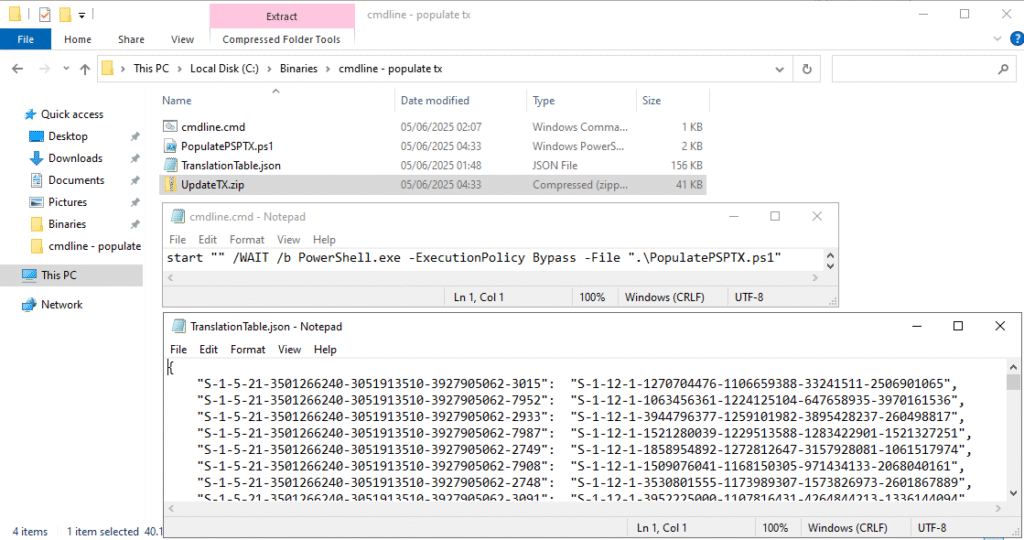
We took advantage of the pre-migration script feature in the PowerSyncPro Migration Agent to deploy the necessary files into the correct runbook.
There’s a “chicken-and-egg” scenario here: the runbook directory that holds the translation table doesn’t exist when the Migration Agent first starts. It’s only created when the repermission phase of the runbook begins. If the directory already exists, the Migration Agent won’t overwrite it. So, a few steps are needed to make this work:
- Find out the runbook GUID
- Update a script to copy the files into the correct place.
- Create the TranslationTable.json (the script above)
- Create the cmdline.zip containing all the scripts and runbook
- Attached it to the start up of the correct runbook.
Here is the script we used:
Can we migrate now?
Ultimately, yes. The usual requirements for performing a migration still apply:
- Set up your own PowerSyncPro server with the endpoint accessible over the internet
- Obtain a valid license
- Deploy the Migration Agent with the PSK and endpoint URL
Keep in mind that devices will not register unless they’ve been added to your temporary Active Directory domain. As with any workstation migration project, it’s absolutely critical to test the entire process end to end.
If you’re transitioning devices to become cloud-only (Entra Joined) for the first time, you’ll also need to make sure that Intune, Conditional Access, Applications (among other services) are correctly configured in your tenant to align with your organisation’s security posture and design.
Once everything is in place, you’ll be able to add the workstations to the batch—and they’ll migrate.
That said, we have to address the elephant in the room:
Given the ransomware attack, can you still trust these machines?
Planning a migration or picking up the pieces?
If you’re planning a complex migration – or recovering from one – PowerSyncPro can help. Talk to your IT partner or contact us to explore your options today.




.png)